
Appearance
AMP Manager For Users
Welcome! This guide walks you through AMP Manager from scratch. No prior experience with Docker or local servers needed.
What You'll Set Up
By the end of this guide, you'll have:
- A local development environment for building websites
- Automatic HTTPS/SSL for your sites
- A dashboard to manage multiple projects
- Encrypted storage for your credentials
Prerequisites
Before installing AMP Manager, ensure you have the following:
1. Docker Desktop
Docker Desktop runs the web servers required for your local development sites.
Installation Steps:
Download- Visit the official Docker Desktop for Windows
- Click "Download for Windows"
- Run the installer and follow the on-screen prompts.
First Launch:
- Docker will request administrator permissions (this is normal).
- Wait for the Docker whale icon in your system tray to display Running.
- Initial startup may take 2–4 minutes.
If you receive a WSL2-related error, download and install the latest WSL2 update package from Microsoft, then restart Docker Desktop.
2. AMP Manager
Installation Steps:
Download- Download the latest release of AMP Manager
- Extract the contents to a dedicated folder e.g.
D:\amp-manager - Open a terminal in that directory and initialize the required containers:bash
docker compose up -d - Launch the application by running
amp-manager-win_x64.exe - Windows dialog ask for administrator permission — click Yes to continue.
Warning: There is no "Forgot Password". Your data is encrypted, if you lose it, your data is gone forever.
Understanding the Dashboard
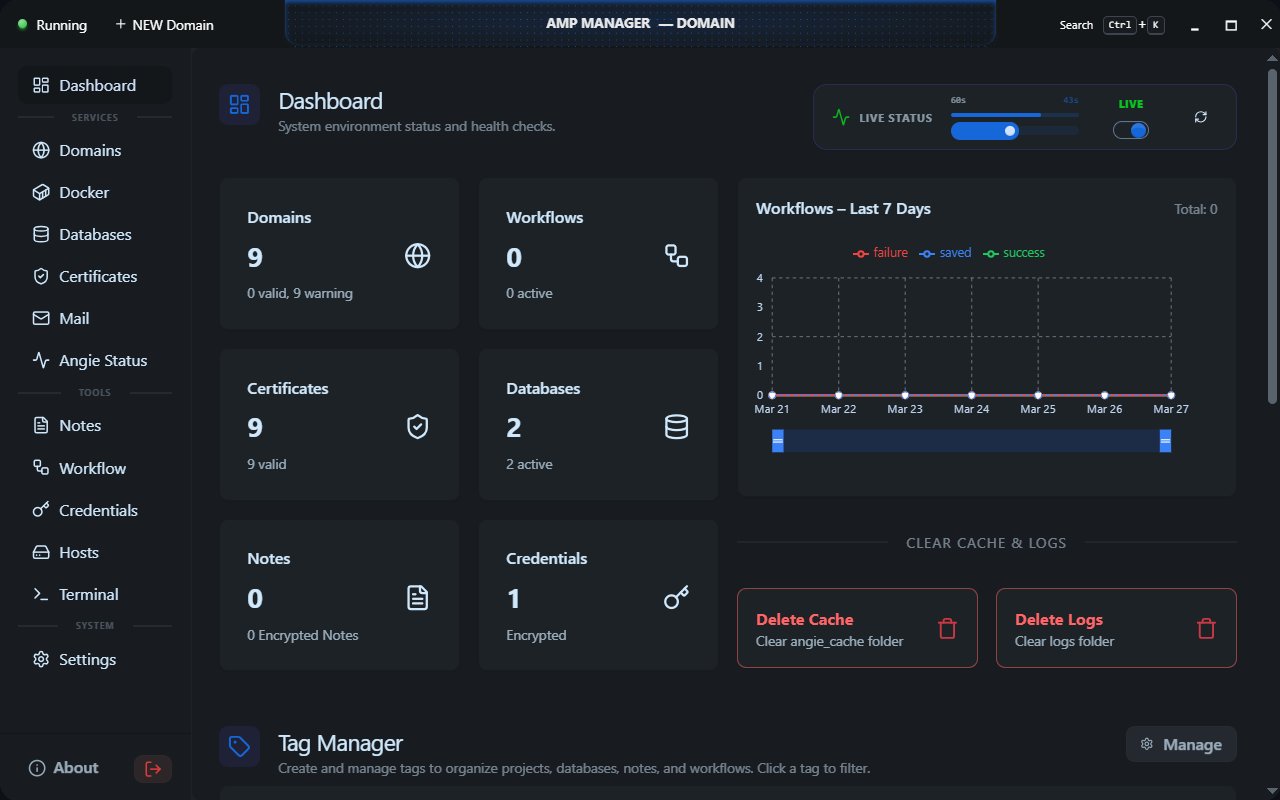
| Top Section | What It Means |
|---|---|
| Docker Indicator | Green [Running] = containers active, Orange [Stopped] = containers stopped, Red [Off] = Docker service not running |
| New Domain | Opens a dialog to create a new domain |
| Search | Opens a search palette to filter projects by tags |
| Domains | Lists all local sites and projects managed by AMP Manager |
| Workflows | Shows the number of saved remote tasks |
| Certificates | SSL certificates issued by your Certificate Authority |
| Databases | Available MySQL/MariaDB databases for your projects |
| Notes | Stores plain-text and encrypted notes for your domains |
| Credentials | Encrypted login details for remote servers |
| Clear Cache & Logs | Removes cache and log files generated by the Angie web server |
Your First Sync
When you first log in, AMP runs a "sync" to set up your environment.
What happens during sync:
Don't worry if it takes a few seconds - it's checking everything is working correctly.
Install Your Root CA
To enable HTTPS on your local projects without browser warnings, AMP Manager creates a local Certificate Authority (CA). You need to trust this CA once on your computer.
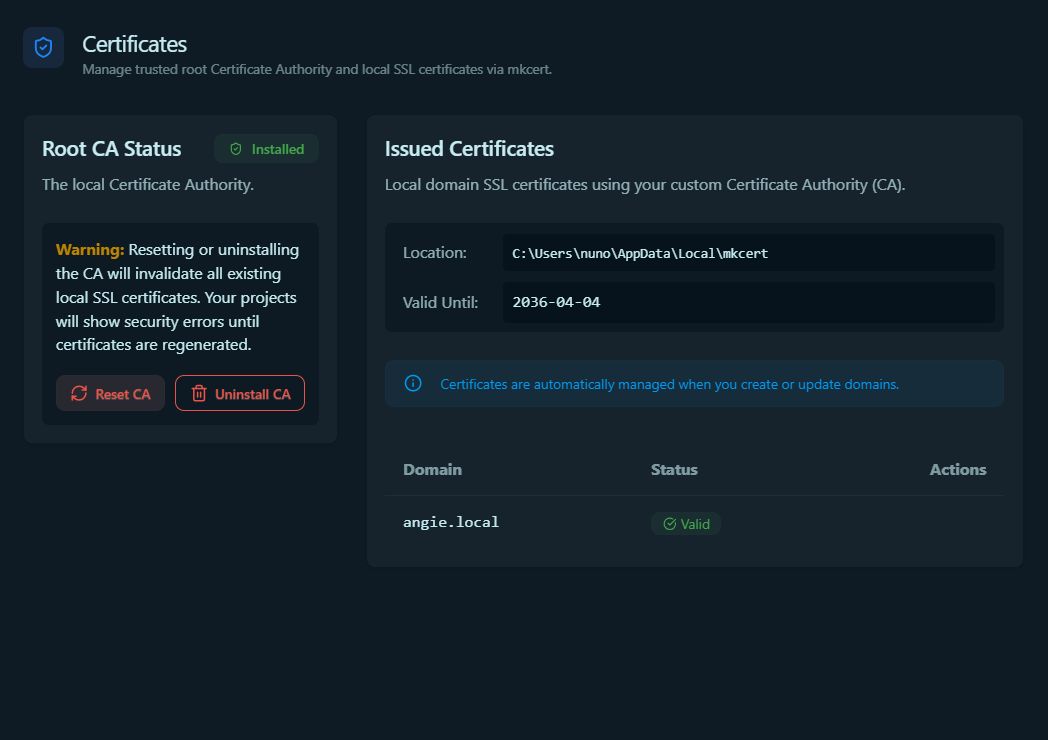
- Go to the Certificates Page Click Certificates in the sidebar.
- Generate the Root CA
AMP Manager automatically creates the required files:
- A private key (rootCA-key.pem)
- A root certificate (rootCA.pem)
- Trust the Certificate (Important)
You must addrootCA.pemto your system's trust store.
- Windows:
A dialog will appear. Click Install Certificate.
It's automatically installed in Trusted Root Certification Authorities. - Linux/macOS:
Follow the on-screen prompts to add the certificate to your keychain.
- Start Using HTTPS
Once trusted, AMP Manager uses this CA to sign certificates for your local sites automatically.
Creating Your First Site
Let's create a local site called myproject.local.
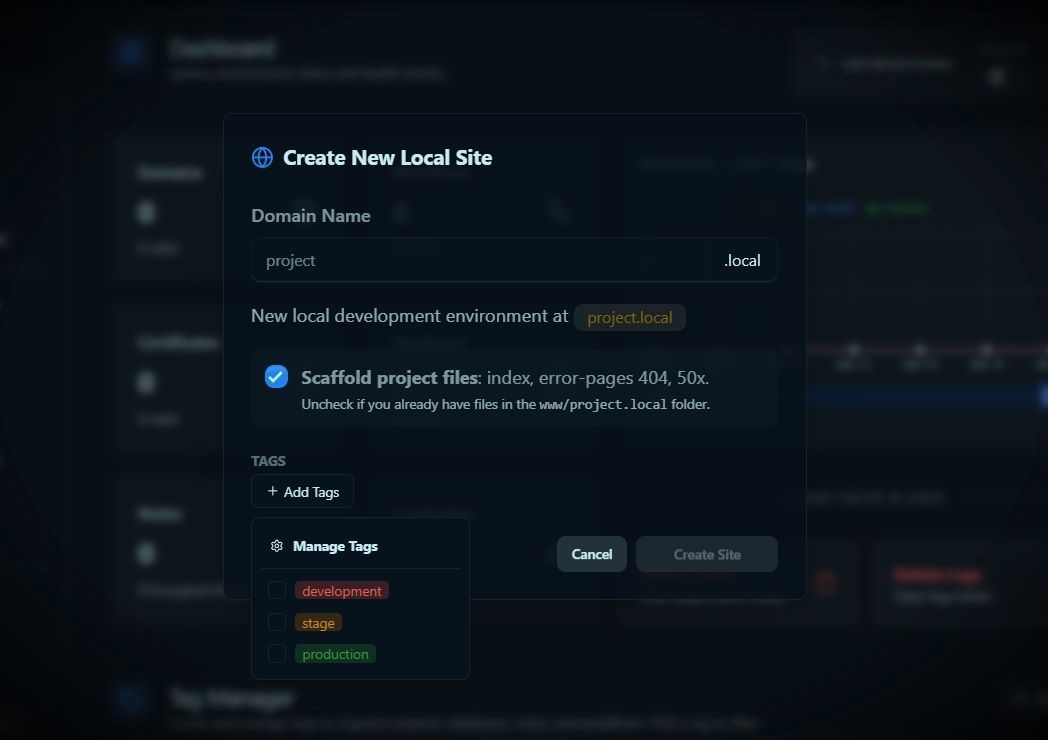
Step 1: Go to Domains
Click Domains in the sidebar.
Step 2: Create New Domain
- Click the button "Add Domain"
- Enter:
myproject - Click Create
Step 3: What AMP Manager Does
Behind the scenes, AMP Manager:
- Creates folder:
D:\amp-manager\www\myproject - Adds entry to Windows hosts file
- Creates SSL certificate (HTTPS support)
- Configures web server (Angie/nginx)
Example files for myproject.local :
Certificate: D:\amp-manager\config\certs
Configuration: D:\amp-manager\config\angie-sites
Step 4: Test It
- Open your browser
- Go to:
https://myproject.local - You should see a welcome page (or blank if empty)
Note: The "s" in https is important! SSL is automatic.
Common Issues
System Checks
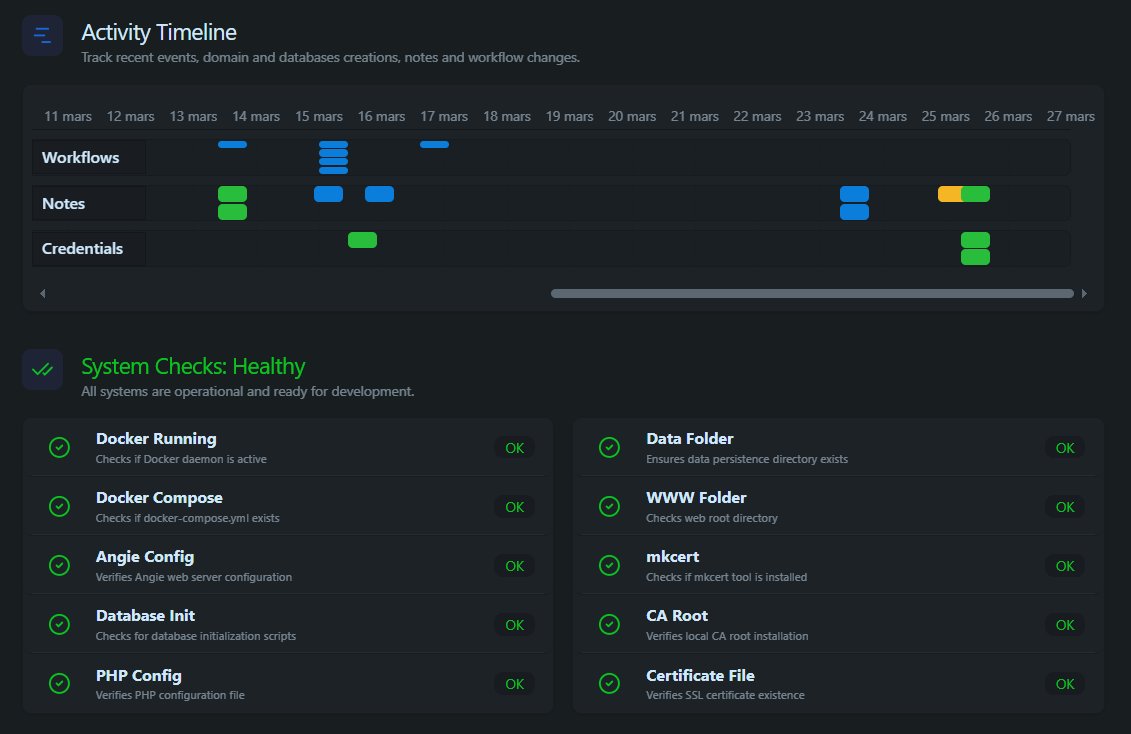
Docker Running: FAIL
Quick Fix: Right-click Docker -> Restart -> Wait 30s -> Refresh AMP Manager
"SSL: FAIL"
- Go to Certificates
- Verify Root CA is installed and SSL is valid
- Restart Angie web server
- Wait 10 seconds
Site Not Loading
- Check the URL has
https://(nothttp://) - Try clicking Sync in the top bar
- Check Docker is running (green on dashboard)
- Restart Docker containers
Glossary (For Now)
| Term | Simple Meaning |
|---|---|
| Domain | Your website's address (like myportfolio.local) |
| SSL/HTTPS | Secure connection (the lock icon) |
| Docker | Software that runs web servers in the background |
| Sync | AMP checking that everything is working |
| Container | A running web server (Angie, PHP, MariaDB) |
What's Next?
Now that you have a site running:
| Goal | Do This |
|---|---|
| Build a website | Add files to D:\amp-manager\www\myproject |
| Use a database | Go to Databases -> Add Database |
| Add notes | Go to Notes -> Add a note |
| Learn more | See for-developers.md |
Need Help?
- Visit How To
- Check Troubleshooting
- Look at Workflows for deployment guides